You choose the passage and the look. We put the instructions into words.
This website creates text prompts—not images.
A prompt is a set of written instructions for an AI. Picture the Passage combines your selections into a detailed, customized Bible art prompt. You copy that text into your own AI image generator, which creates the artwork.
The studio does not generate artwork or send the prompt to another AI for you. After generating an image, use Add editable text to place exact wording over it in your browser. You need a separate tool with image-generation capabilities; its account requirements, limits, and any charges are separate.
Two ways to get better lettering
For words generated with the artwork, choose “Scripture I have checked and pasted” and supply the exact quotation and reference. Choose the NASB edition when applicable. Typography and artistic integration are independent settings; an art preset will not replace your explicit font choice.
For precise control, generate the artwork with no text, then open Add editable text. Place your checked wording over the finished image, adjust its font, size, alignment, and backing, and download a PNG. The preview is the text that will be exported. Nothing is uploaded, and the editor does not save your work after the tab closes.
AI lettering can still miss a word or placement instruction. Check the final result. Use the correction controls beside your generated prompt for a focused retry.
The same checked wording, two text treatments
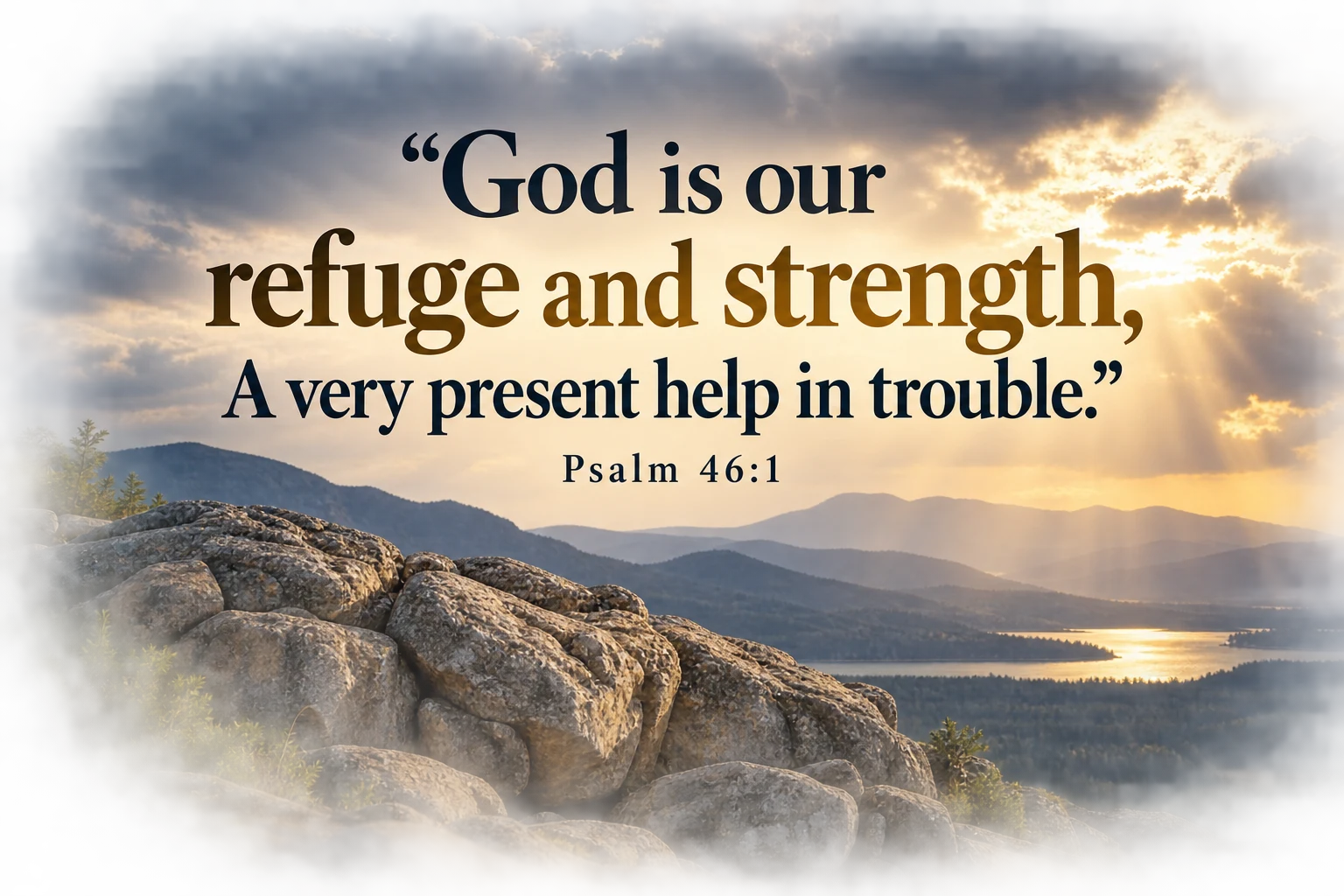
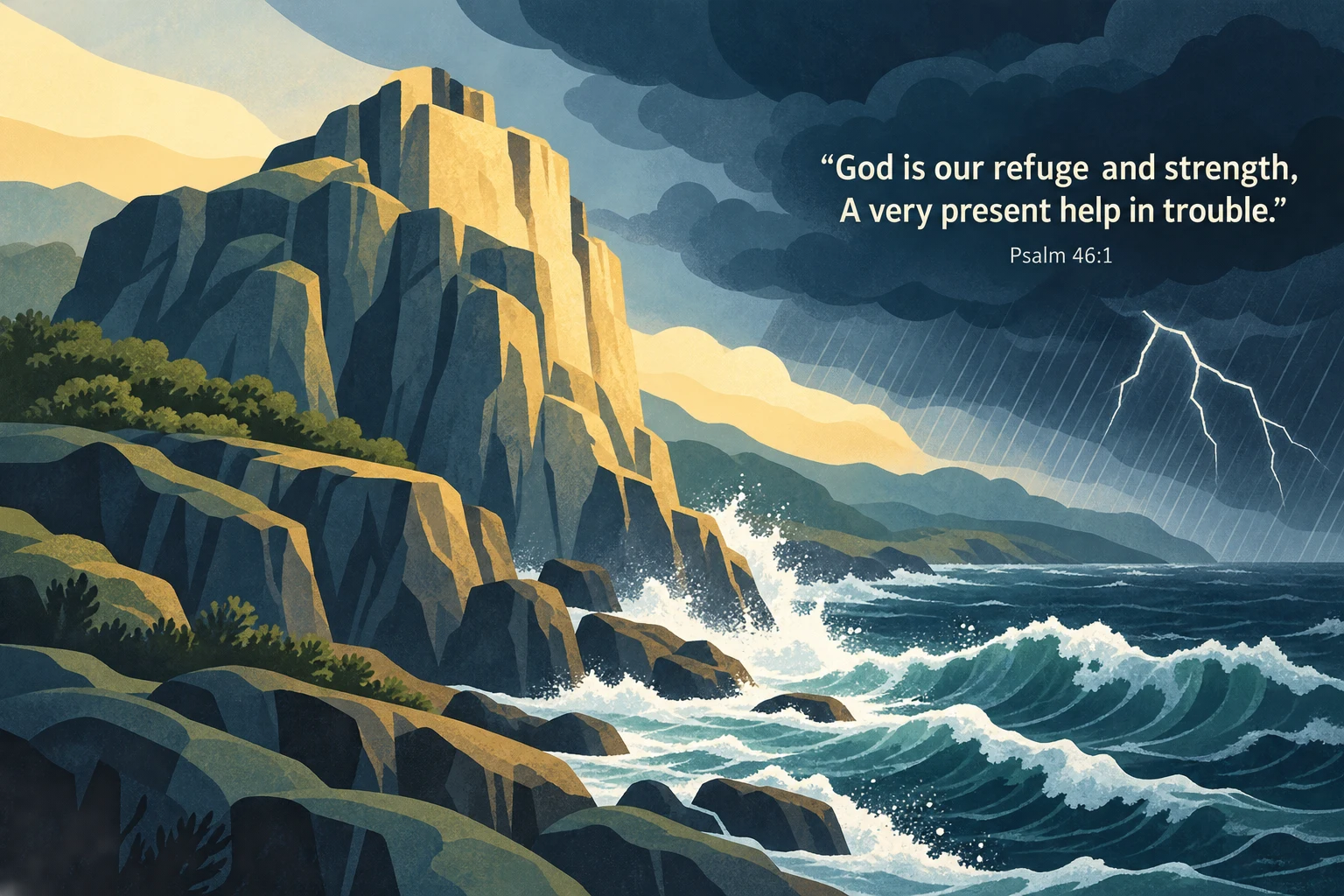
These AI-generated examples used the studio’s exact prompts, with Psalm 46:1 from NASB 1995 supplied and checked before generation. Both retained the complete wording and reference. They illustrate possibilities, not guaranteed results.
Large serif · Photographic Scripture Poster
The lettering is complete and legible, but it sits higher than the requested center. Use a correction prompt or the text editor when precise positioning matters.
“Create one new Bible-study image based on Psalms 46:1, using NASB 1995 as the textual basis…”
Supporting sans serif · Textured Editorial Illustration
The quotation remains a supporting element with strong contrast. The illustration is more detailed and faceted than the requested broad organic forms.
“Create one new Bible-study image based on Psalms 46:1, using NASB 1995 as the textual basis…”
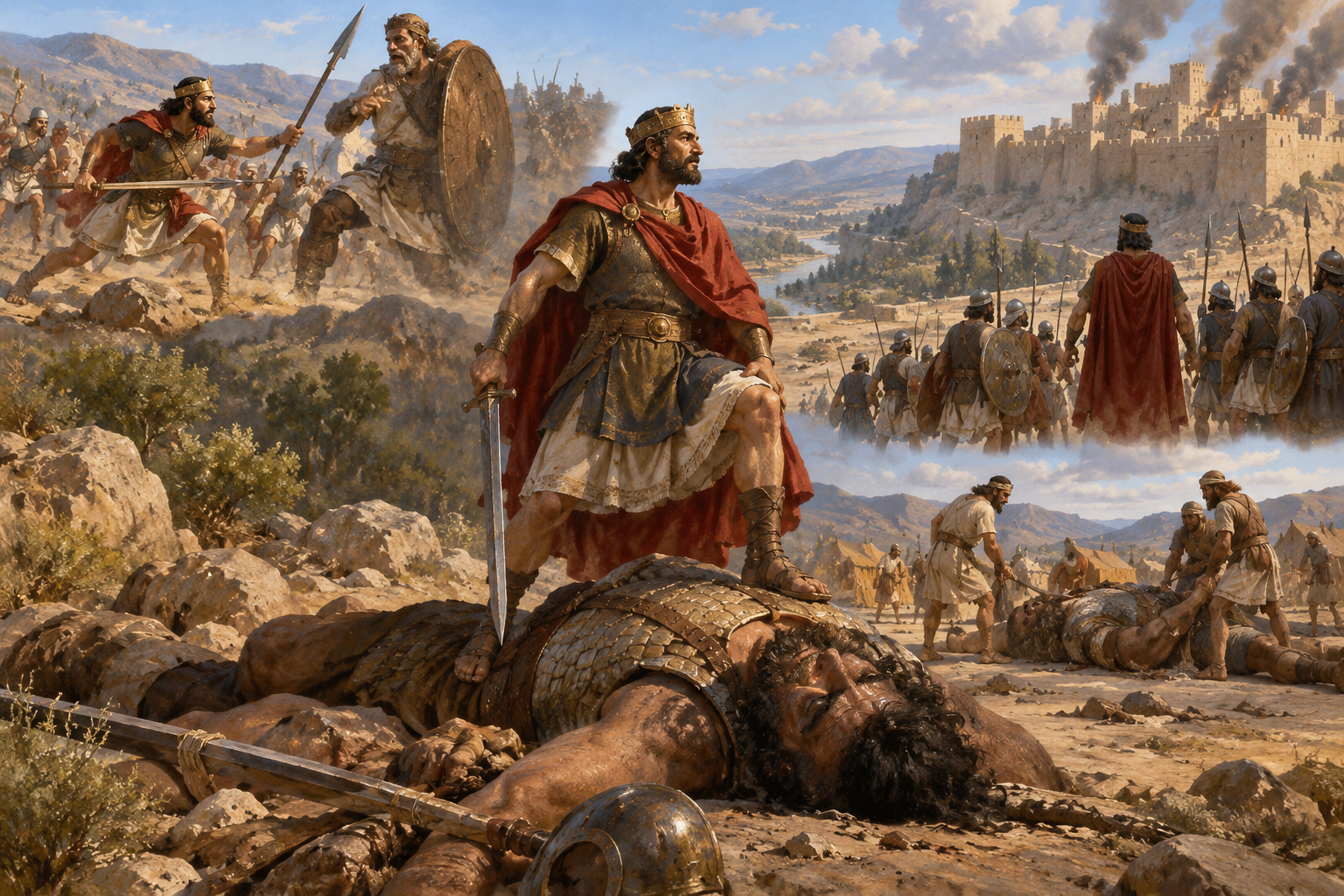
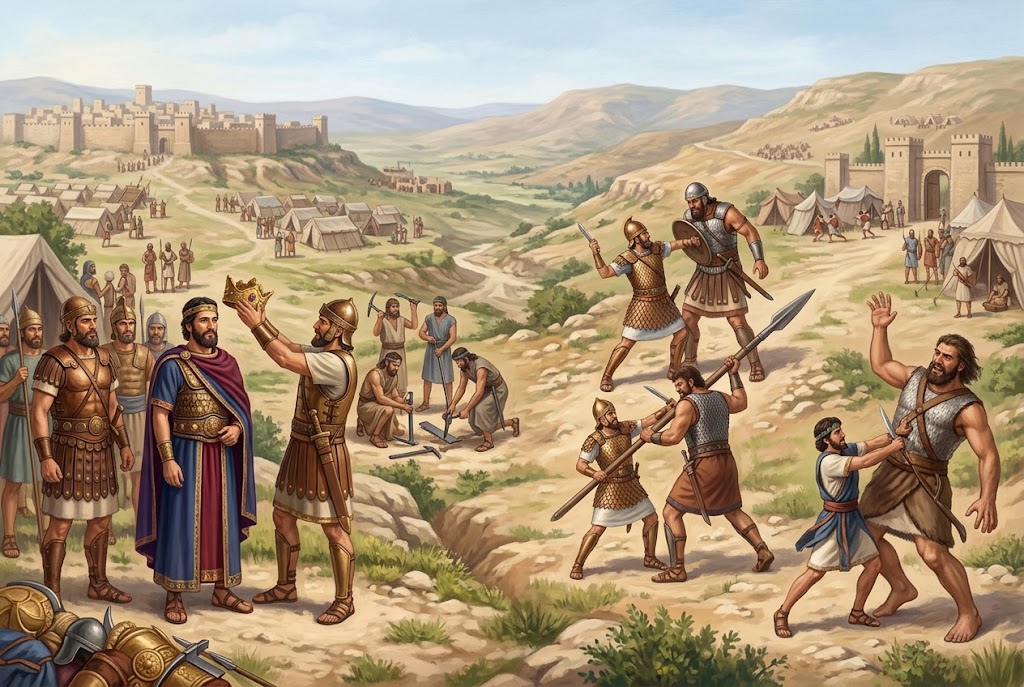
Amanda’s example · 1 Chronicles 20
From Bible passage to finished image
Here is how the choices become a prompt—and how a separate AI turns that prompt into artwork.
1
Choose the passage
Passage
1 Chronicles 20
Scope
Whole chapter
Translation
NASB
2
Choose the look
Art preset
Historical Painting — Accuracy First — Multiple Scenes
Text
No lettering
Format
Landscape 3:2 · Full canvas
This preset asks for distinct chapter scenes to blend into one painting, with warm natural colors and realistic proportions.
3
Create and copy the text prompt
In the studio, select Create image prompt, then Copy prompt. This written description is what Picture the Passage produces. Here is Amanda’s actual example:
“Create one new Bible-study image based on 1 Chronicles 20, using NASB as the textual basis…”
4
Let your image AI create the picture
Open your image AI, start a new conversation with image generation available, and paste the entire prompt. Amanda used the same written prompt in ChatGPT and Google Gemini for the examples below. Your result may look different.
Both results have a painted appearance, but they interpret the requested finish differently. These are Amanda’s supplied examples, not a promise of what either tool will produce every time.
A convincing image can still contain mistakes. Check either result for biblical and historical accuracy, anatomy, and scene details. The preset’s “Accuracy First” name describes its instructions; it does not certify the finished artwork. Read the review guidance below.
Poetry and visual metaphor · Psalm 1:3
Bible art does not have to be a historical scene
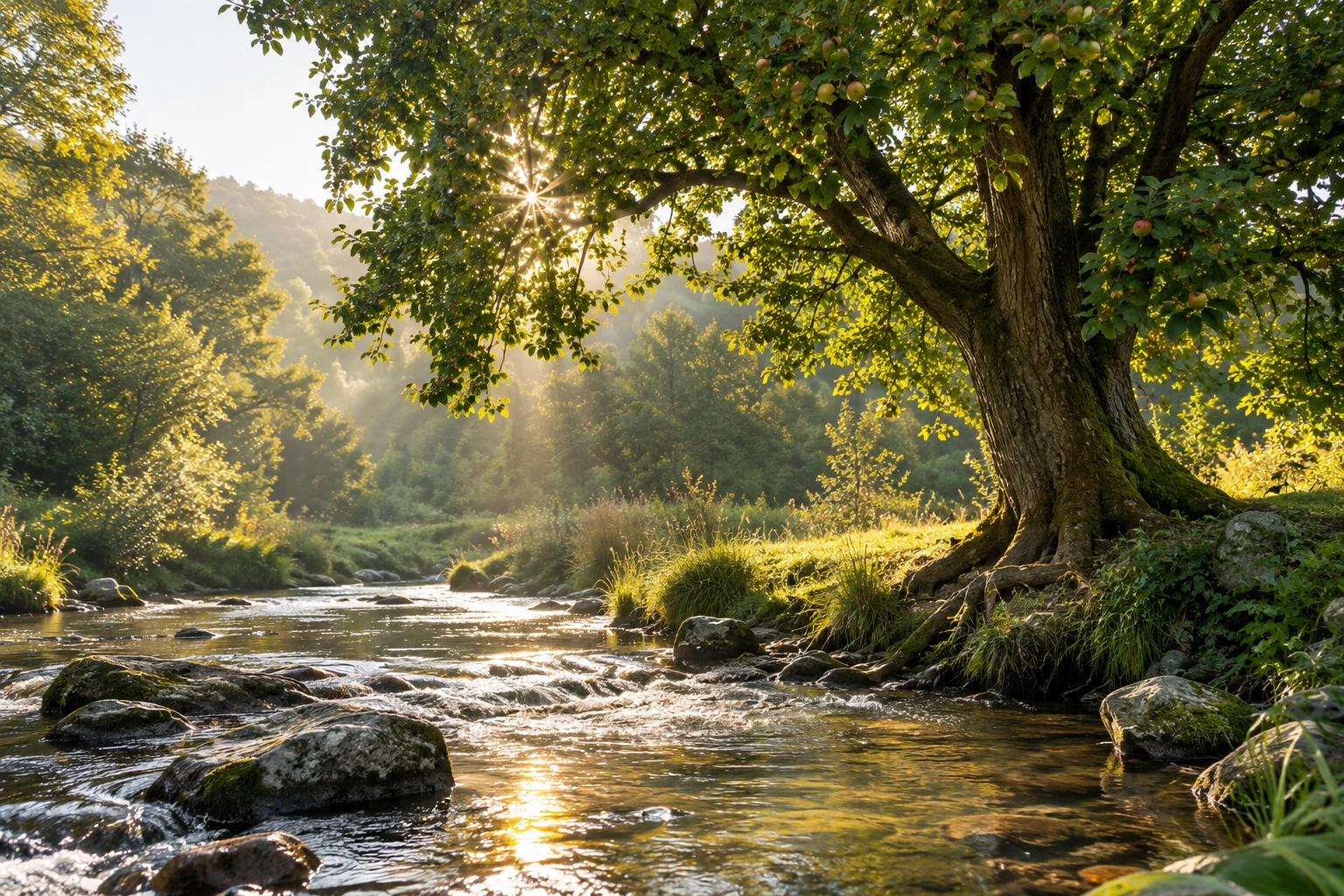
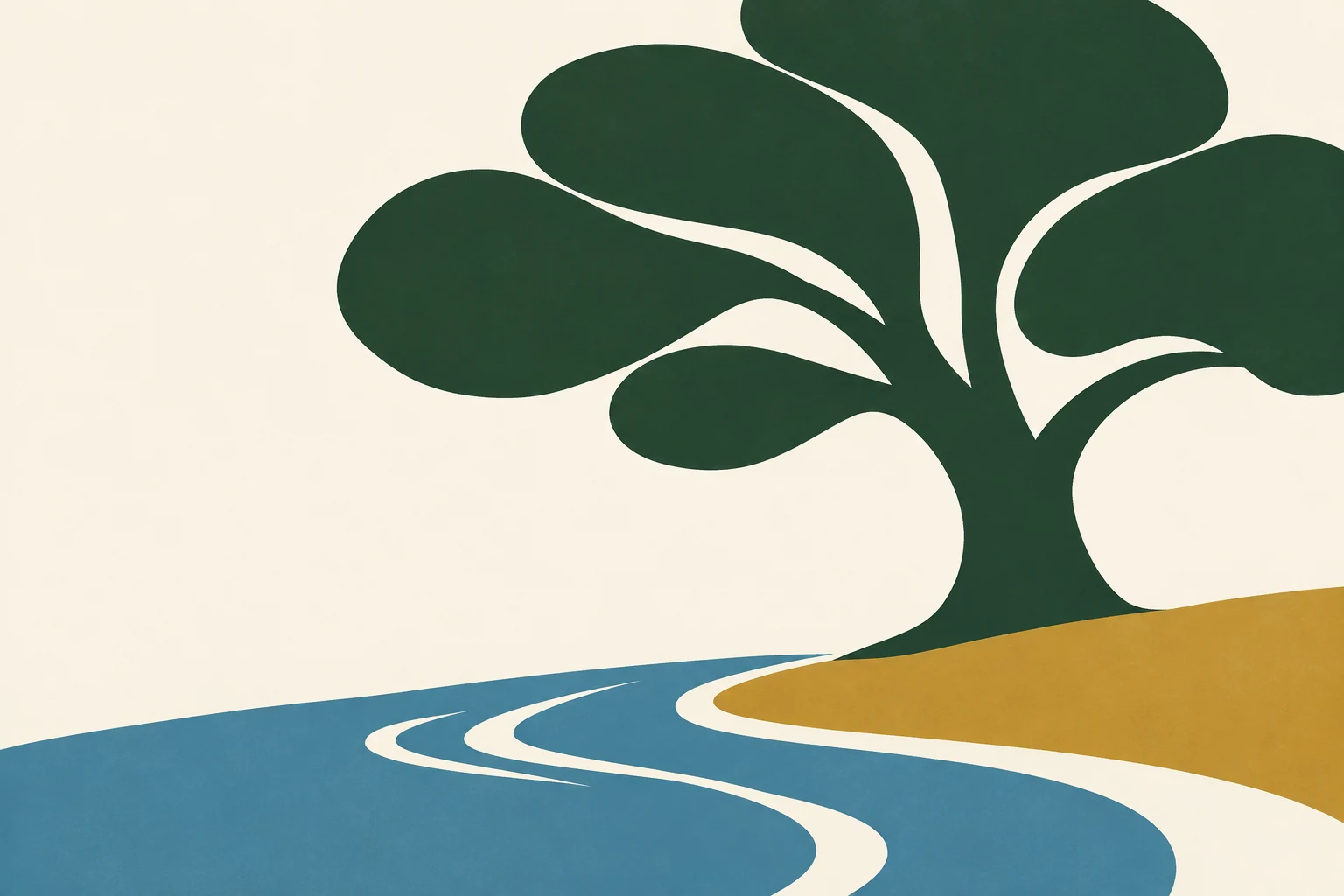
Psalm 1 compares the person who delights in and meditates on the Lord’s law to a fruitful tree planted by water. These two examples focus on that poetic image—not an invented event from the psalmist’s life.
Both use the same passage, no people, no lettering, and a full-canvas 3:2 landscape. Changing the art style changes the visual language, not the passage’s meaning.
These are existing preset samples, with the original art-direction prompts used to create them. Their instructions were written for these examples; a new prompt from today’s studio uses the current prompt format. Results from your image AI will vary.
A Psalm-inspired landscape
Passage
Psalm 1:3
Art preset
Luminous Landscape Photography
Portrayal
One visual metaphor: a flourishing tree beside water
People / text
No people · No lettering
Color
Natural greens and warm amber
Art direction
Photographic detail, wide landscape framing, and luminous natural light
Format
Landscape 3:2 · Full canvas
Natural-looking leaves, fruit, roots, and moving water express the verse’s image of a flourishing tree. This is an AI-created interpretation, not a photograph of a biblical location. View full image in a new tab
“Psalm 1:3 interpreted as a poetic visual metaphor: one thriving mature fruiting tree naturally rooted beside a flowing shallow stream…”
A symbolic geometric illustration
Passage
Psalm 1:3
Art preset
Mid-Century Geometric Editorial
Portrayal
One visual metaphor: a flourishing tree beside water
People / text
No people · No lettering
Color
Deep forest green, muted blue, ochre, and ivory
Art direction
Flat geometric shapes, minimal detail, and asymmetrical open space
Format
Landscape 3:2 · Full canvas
A few bold shapes keep the tree-and-water relationship clear. The same poetic metaphor becomes a graphic illustration instead of a realistic landscape or a scene with people. View full image in a new tab
“The tree is visibly flourishing and rooted beside the water, poetically inspired by Psalm 1:3…”
Try this approach: In the prompt studio, select Psalms 1 and verse 3, choose either preset, then use the passage-interpretation controls to choose a visual metaphor and no people. Keep text off for an image like these. Create and copy your prompt, then paste it into your image AI.
Read the whole psalm before interpreting the image. The tree is a poetic comparison, not a guarantee of wealth or a trouble-free life.
Your first prompt in five simple steps
You can leave the optional settings alone. A preset gives you a ready-to-use starting point.
Choose your Bible passage.
Select the book, chapter, whole chapter or verse range, and preferred translation. Landscape 3:2 is the starting image shape; change it if you need another size or layout.
Decide whether to include text.
Choose No for artwork without lettering. Choose Yes to select the wording source and, optionally, its appearance. If you request AI-written inspirational wording, it is not a direct Scripture quotation.
Pick an art preset.
Choose the look you like. Each preset loads coordinated settings. Search by medium, explore Abstract & Conceptual styles, save favorites, or compare up to three styles. Poetry books suggest poetic samples automatically. Word Art styles appear when text is enabled; you control how prominent the words should be.
Review, create, and copy your prompt.
Check the summary, select Create image prompt, then Copy prompt. Fill in any missing required choices or empty Custom fields. If you change a setting afterward, update the prompt before copying again.
Paste it into your image AI.
Open your preferred AI image generator and start a new image-creation conversation. Paste the entire copied prompt into the message box and send it. You are asking for a new image from written instructions, so you do not need to upload a picture. Save the finished image in your image AI.
Asked to upload a picture?
Picture the Passage requests a new image from written instructions. You do not need a source picture.
If you are using an older saved prompt, return to the studio, choose your settings, and create a fresh prompt. New prompts use a more concise format; saved history keeps the original wording.
Paste the fresh prompt into a new conversation with image generation available. If the tool only offers photo editing, use one that can create images from text. This can help with a mistaken edit request, but it cannot guarantee that an image AI will complete the request.
A request for the Bible passage or exact quotation is different: provide that text if the AI cannot verify it. If you receive a refusal or another error, send Amanda the exact message and the name of the tool through Feedback & Guestbook so she can understand what happened. Picture the Passage cannot change another tool’s capabilities, limits, or policies.
Optional controls, explained
Art customization
Change medium, color, detail, stylization, composition, viewpoint, lighting, or texture. “Let the AI choose” delegates that category to your image AI. “Custom” lets you write your own direction.
Passage interpretation
Choose a literal biblical scene, one visual metaphor, a symbolic composition, nature or meaningful objects, a blend, or your own approach. With AI choice, the prompt asks your image AI to consider the passage’s genre and meaning. This website does not independently interpret each passage.
People and figure detail
Let the passage decide, exclude people completely, or choose a count. When people are allowed, choose detailed, simplified, faceless, or silhouette figures within your selected art style. Both Accuracy First historical painting presets keep participants, defining details, and settings passage-led, so these controls do not apply to them.
Non-narrative setting
For poetic or symbolic imagery, choose timeless surroundings (the default), a biblical-era setting, or a modern-day interpretation. Literal biblical events always keep their historical setting.
AI-selected Scripture
“Let AI choose Scripture that captures the main message” asks your image AI to read the whole selected passage and choose a verse or connected verses that best express its central meaning. The prompt requires the selected translation’s exact wording in quotation marks, followed by the book, chapter, and verse, without a translation label.
Primary focus
Guide what the artwork emphasizes, such as the central scene or meaning. This is separate from the art style: watercolor can tell a literal story, and photography can express a symbolic idea.
Text and image shape
Adjust wording, typography, size, placement, and treatment when text is on. Shape options describe the overall proportions, artwork outline, and surrounding background; they are requests to the image AI, not guaranteed output settings.
Example images
Example images show samples of a style. The abstract collection uses different passages to demonstrate its range. Those buttons do not set your prompt’s interpretation or copy the sample’s subject into your artwork. Results will vary.
Reset to Preset Defaults
Restore the selected preset’s eight art settings. Your passage, text choices, image shape, interpretation, and people choices stay intact.
Good instructions help. They cannot guarantee a good image.
Your image AI can still get it wrong.
Even a detailed prompt can produce distorted hands, extra limbs, garbled lettering, invented objects, awkward details, or an overly artificial look—sometimes called “AI slop.” Your AI may misunderstand the passage or ignore part of the instructions.
Picture the Passage guides the request; it cannot control, inspect, or correct the other AI’s output. If something looks wrong, review both the prompt and the image. The prompt may need clearer direction, and the image may need another attempt.
Try one specific correction at a time.
Tell your image AI what to fix and what to keep. For example:
“Keep the composition and colors. Correct the distorted hands, remove the extra objects, and leave everything else unchanged.”
If it keeps struggling, simplify the scene, try a different preset, or generate without text and add verified wording afterward in a design editor. A correction can also introduce new mistakes, so review the revised image too.
Check the artwork against Scripture.
The prompt includes biblical and historical safeguards, but they are instructions—not verification of the finished image. Check the people, setting, clothing, symbols, emotional tone, and meaning against your selected passage. Verify any quoted verse, spelling, and reference against your preferred Bible translation.
AI artwork is an illustration, not biblical authority. Review it before using it in Bible study, church materials, or a public post.
Keep prompts you want to use again.
Copying a newly created prompt also saves it to your history; you can use Save project separately. New projects save the prompt and your settings. Name a project, favorite it, search your history, or choose Open & edit to restore its controls. Older entries still offer View and Copy. It is saved in that browser on that device, not automatically synced to your other devices.
Use Export history for a backup and Import history to bring saved prompts into another browser. Clearing browser data can remove your history.
Have feedback or an idea?
Visit Feedback & Guestbook to send Amanda a message. Enter your first name, last initial, and email—no sign-in or verification required—then choose private feedback or a guestbook entry. Public entries require Amanda’s approval. Only your first name and last initial accompany your message; your email stays private.
Start simple: a passage, a text choice, and a preset.